 Phevo
PhevoKI Bilder bearbeiten
Bild hochladen, die Änderung benennen – so kannst du KI Bilder bearbeiten, ohne dass sich der Rest des Motivs bewegt.
Echte Bearbeitungen, echte Prompts
Jedes Paar unten entstand aus einem einzigen Satz – ohne Masken, ohne Ebenen.
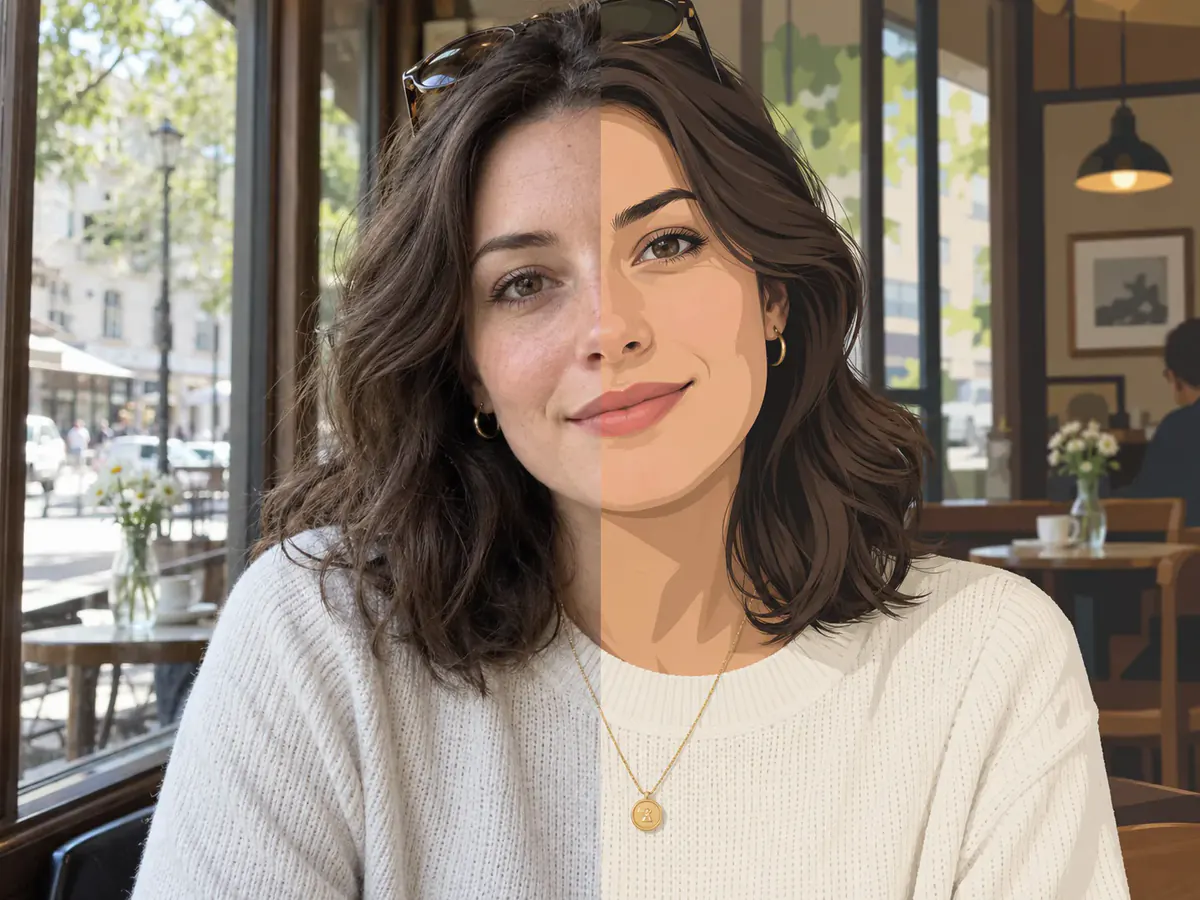
Prompt
Zeichne dieses Porträt als flache Illustration, Pose behalten.
Dein eigenes Ergebnis ersetzt diese Beispiele, sobald es fertig ist.
Beim KI-Bilder-Bearbeiten zählt das Foto, das du schon hast
Soll die KI Bilder bearbeiten, ist dein Upload der Ausgangspunkt, keine leere Fläche. Sie liest deinen Ausschnitt, wendet deinen Satz darauf an und hält den Aufbau: erkennbar dein Foto, nur verändert – kein Double aus einer Beschreibung.
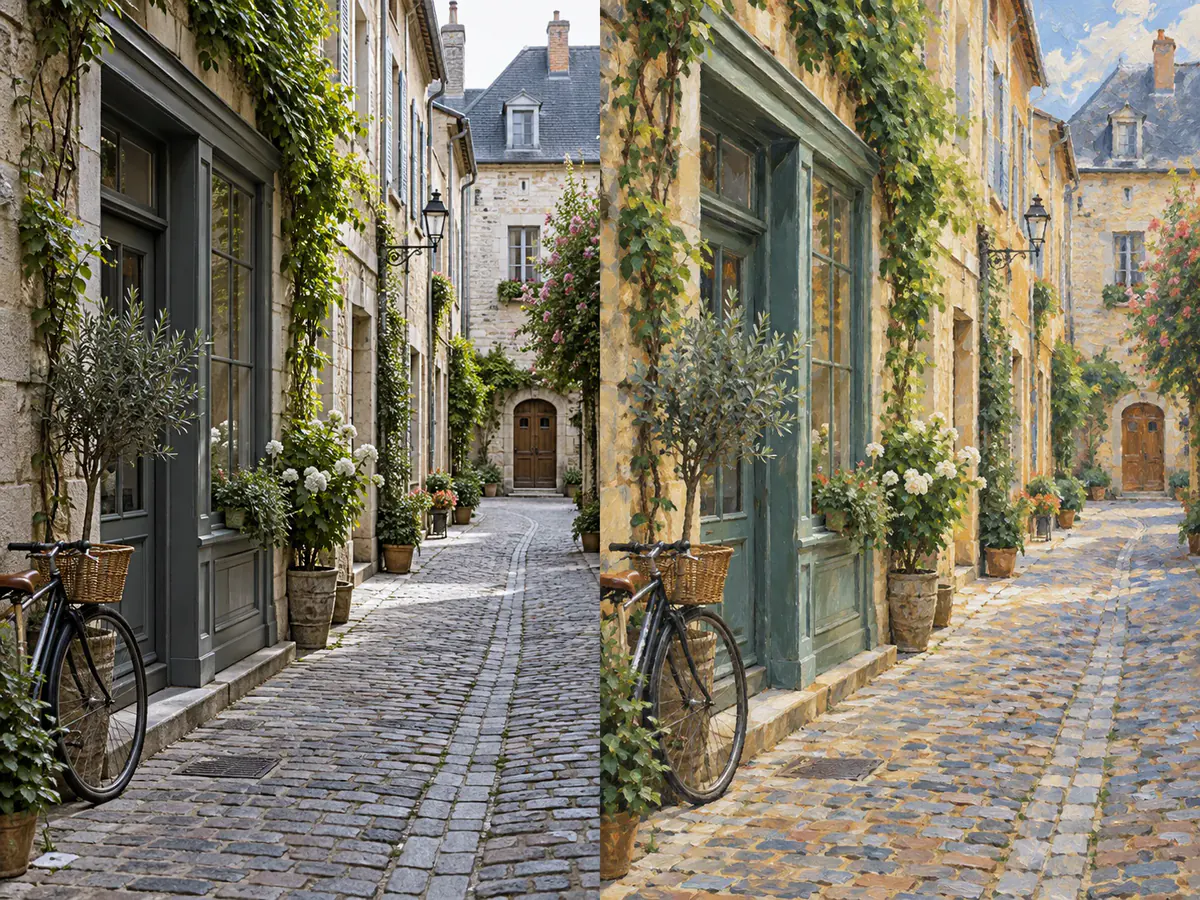
Bildaufbau behalten, nur das ändern, was du benennst
Schreib die Anweisung in zwei Hälften: erst was bleibt, dann was sich bewegt. „Pose und Hintergrund behalten, Jacke auf Rot ändern“ zieht eine Grenze – und sie ist der Grund, warum ein Porträt nach dem KI-Bilder-Bearbeiten dasselbe Gesicht hat.
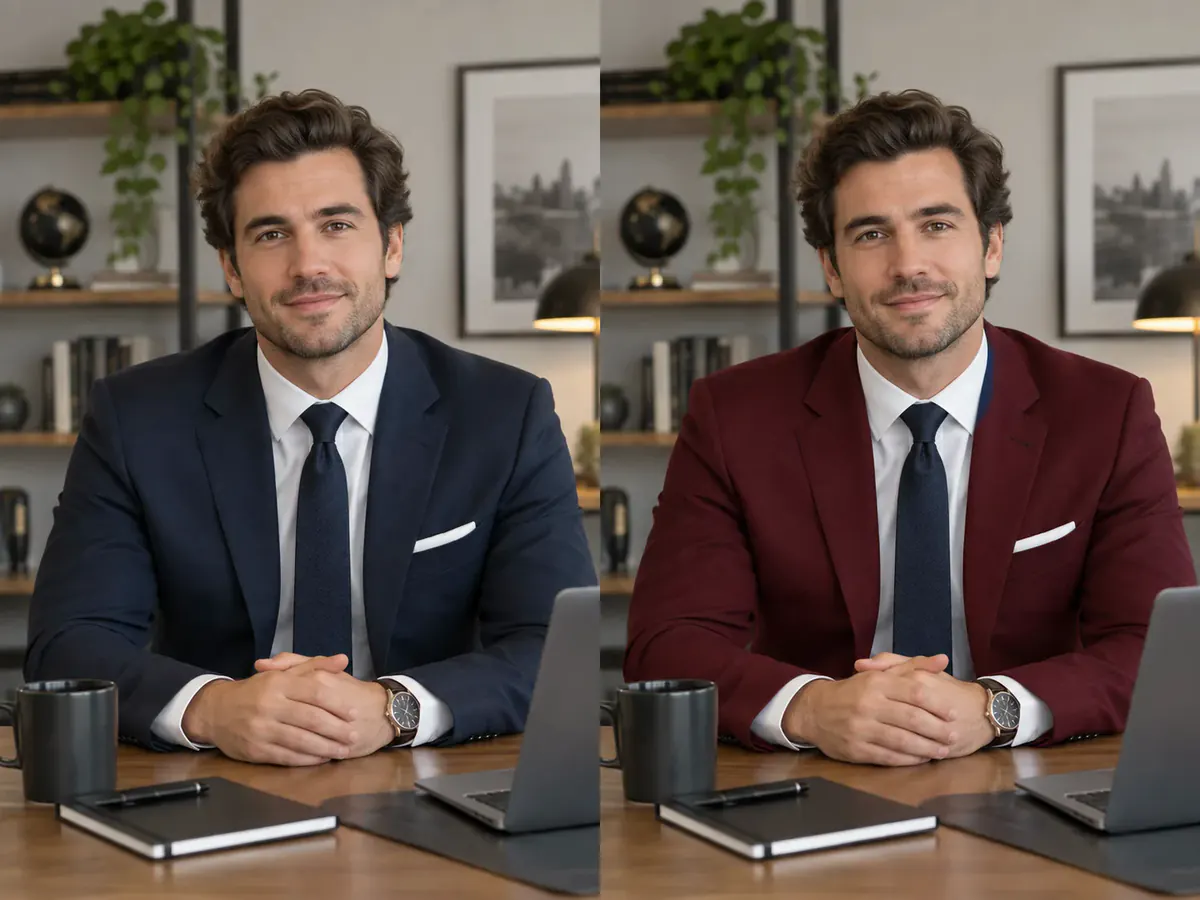
Mehrere Modelle zur Wahl, die Credits stehen auf dem Button
Zehn geprüfte Endpunkte bei fal.ai können hier KI Bilder bearbeiten: GPT Image 2.5 Flare, GPT Image 2.5 Sunburst, GPT Image 2, Nano Banana Pro, Nano Banana 2, Phevo, Flux-2 Pro, Seedream 5.0 Pro, Seedream 5.0 Lite und Grok Imagine. Ein Durchlauf kostet 5 bis 20 Credits, sichtbar auf dem Button.
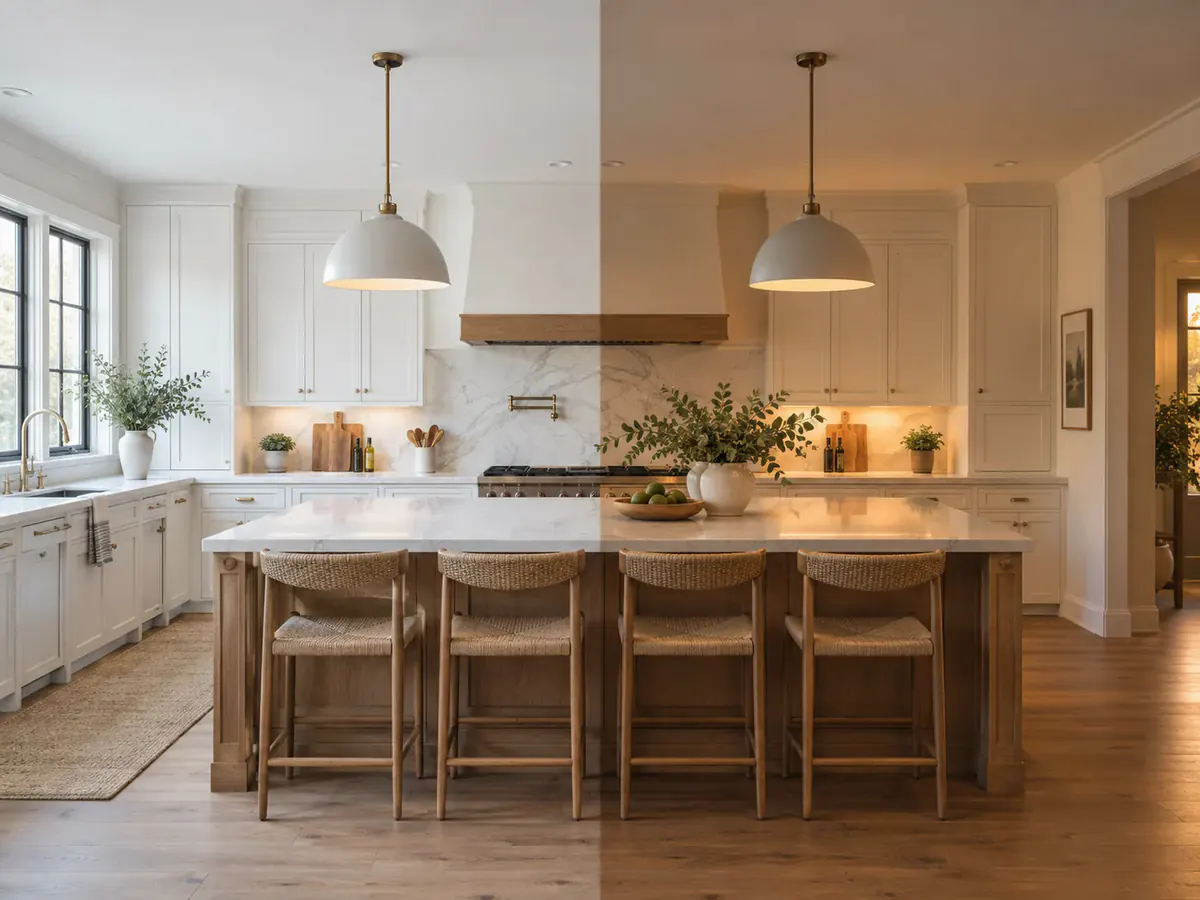
Mehrere Vorlagen in einem Durchlauf zusammenführen
Im Fusionsmodus darf es mehr als ein Upload sein: das Produktfoto plus die Szene, in die es gehört, oder ein Gesicht plus das Outfit. Je nach Modell kann die KI Bilder bearbeiten und bis zu sechzehn Vorlagen zu einem einzigen zusammenrechnen.
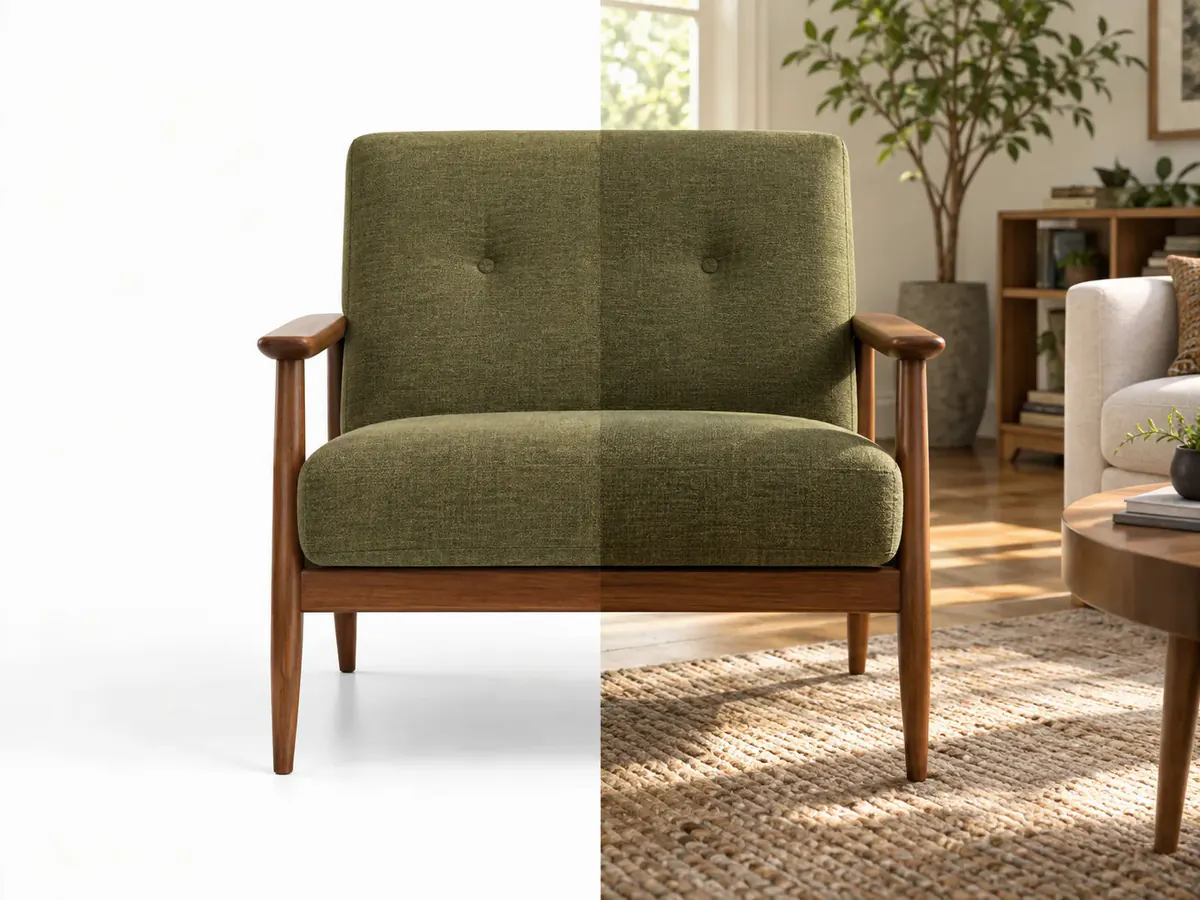
Seitenverhältnis frei wählen und bis 4K ausgeben
Die Ausgabe hängt nicht an deiner Datei. Wähle 1:1, 16:9, 9:16, 4:3 oder 3:4 und lass die KI Bilder bearbeiten und in 1K, 2K oder 4K rendern, sofern das Modell es zulässt. Aus dem quadratischen Produktfoto wird so ein breites Banner.
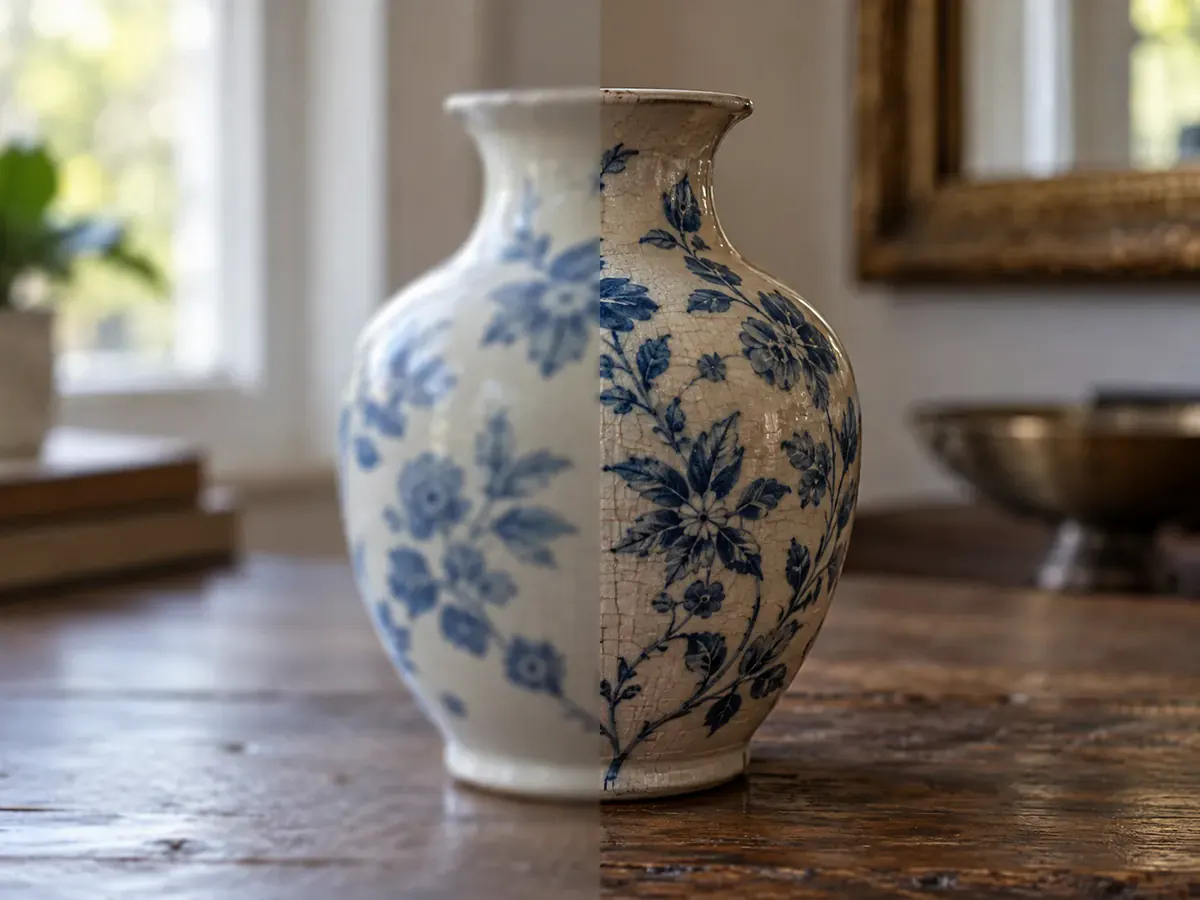
KI Bilder bearbeiten in drei Schritten
- 1
Das Bild hochladen, das sich ändern soll
Zieh eine JPEG-, PNG- oder WebP-Datei unter 30 MB ins Feld. Verkleinert wird sie schon im Browser, auch ein Handyfoto startet sofort.
- 2
Aufschreiben, was bleibt und was sich ändert
Ein Satz genügt: erst was überleben muss, dann die Änderung. Wähle dann das Modell, das KI Bilder bearbeiten soll.
- 3
Beide Bilder vergleichen und herunterladen
Das neue Bild landet neben deinem Original: Du siehst, was sich bewegt hat. KI Bilder bearbeiten endet hier mit einem Download in voller Größe, ohne Wasserzeichen.
Anwendungsfälle: KI Bilder bearbeiten
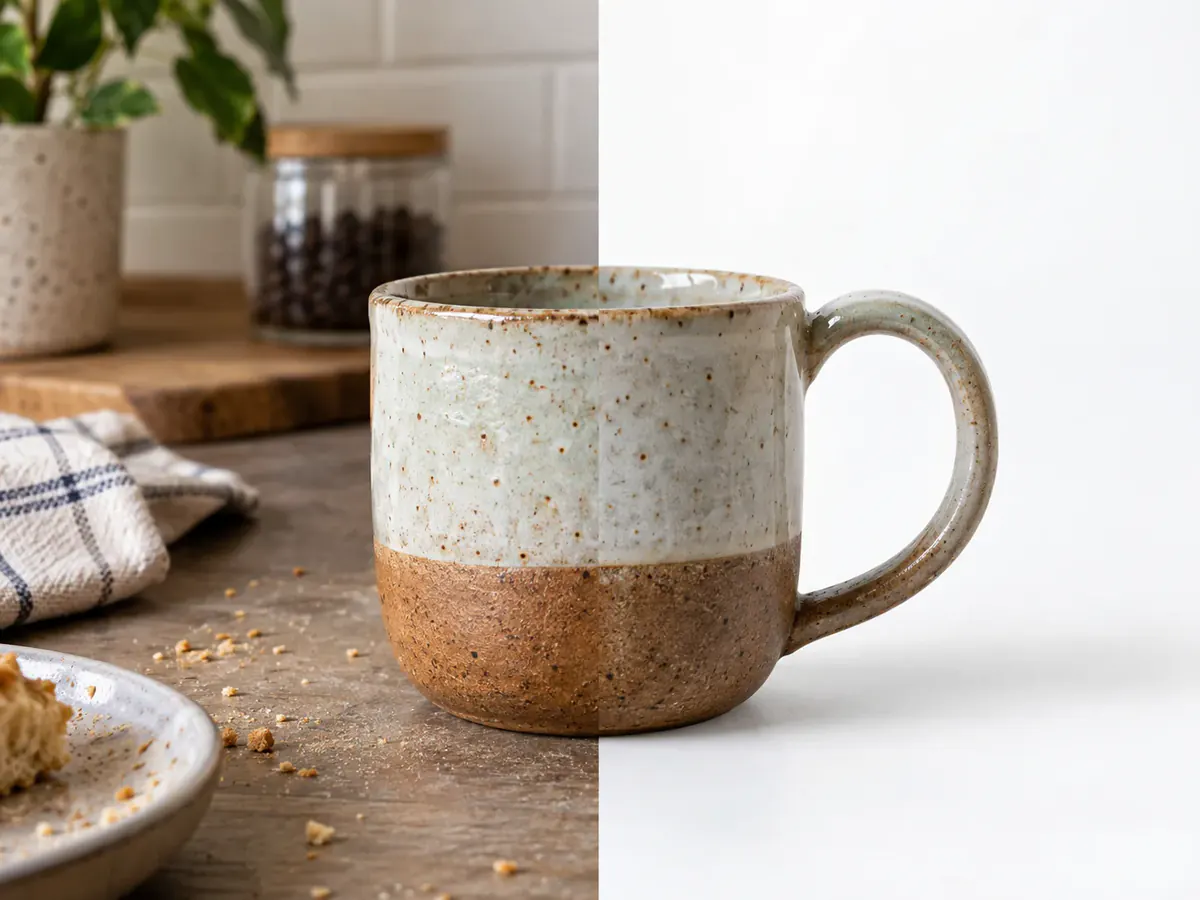
Verkaufen ohne eigenes Studio
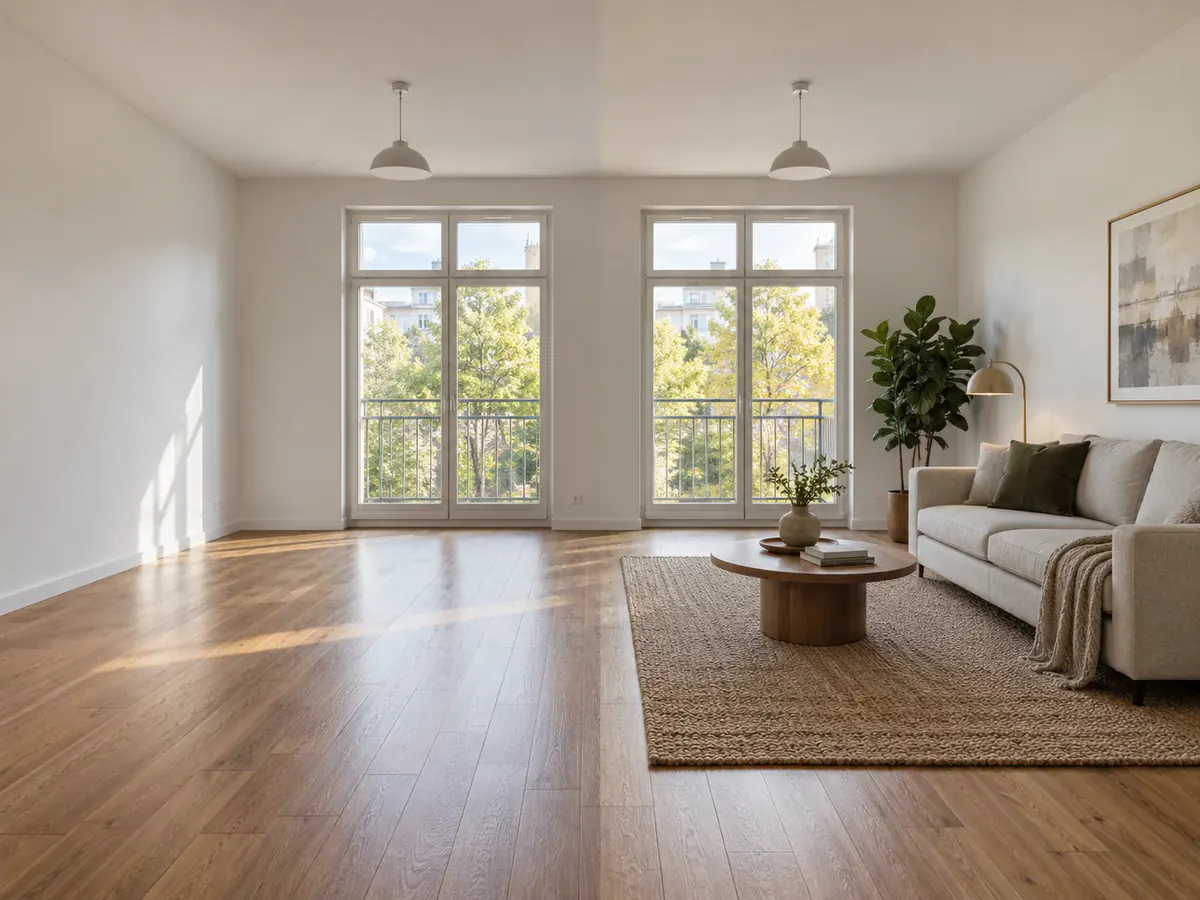
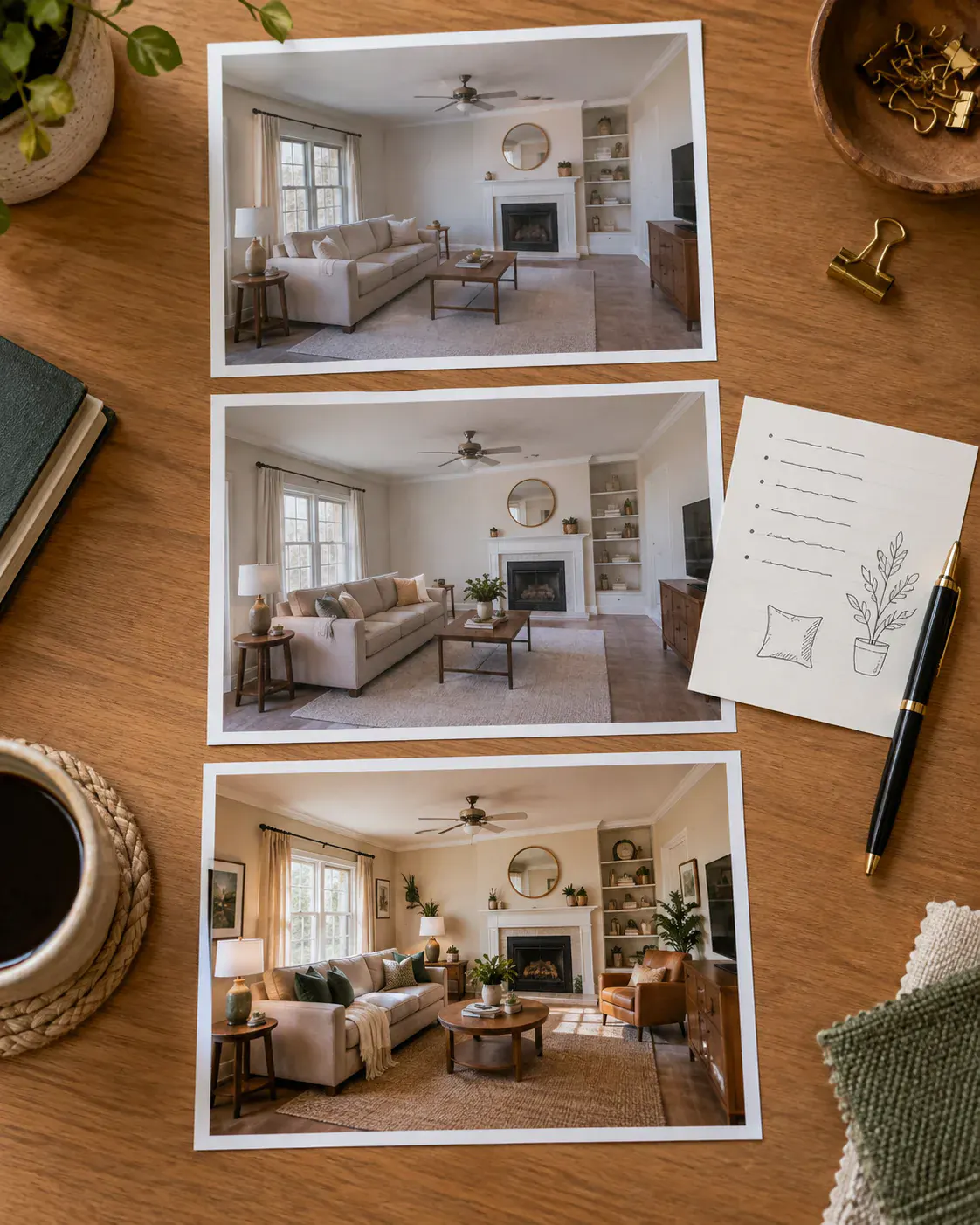
Einen leeren Raum möbliert zeigen
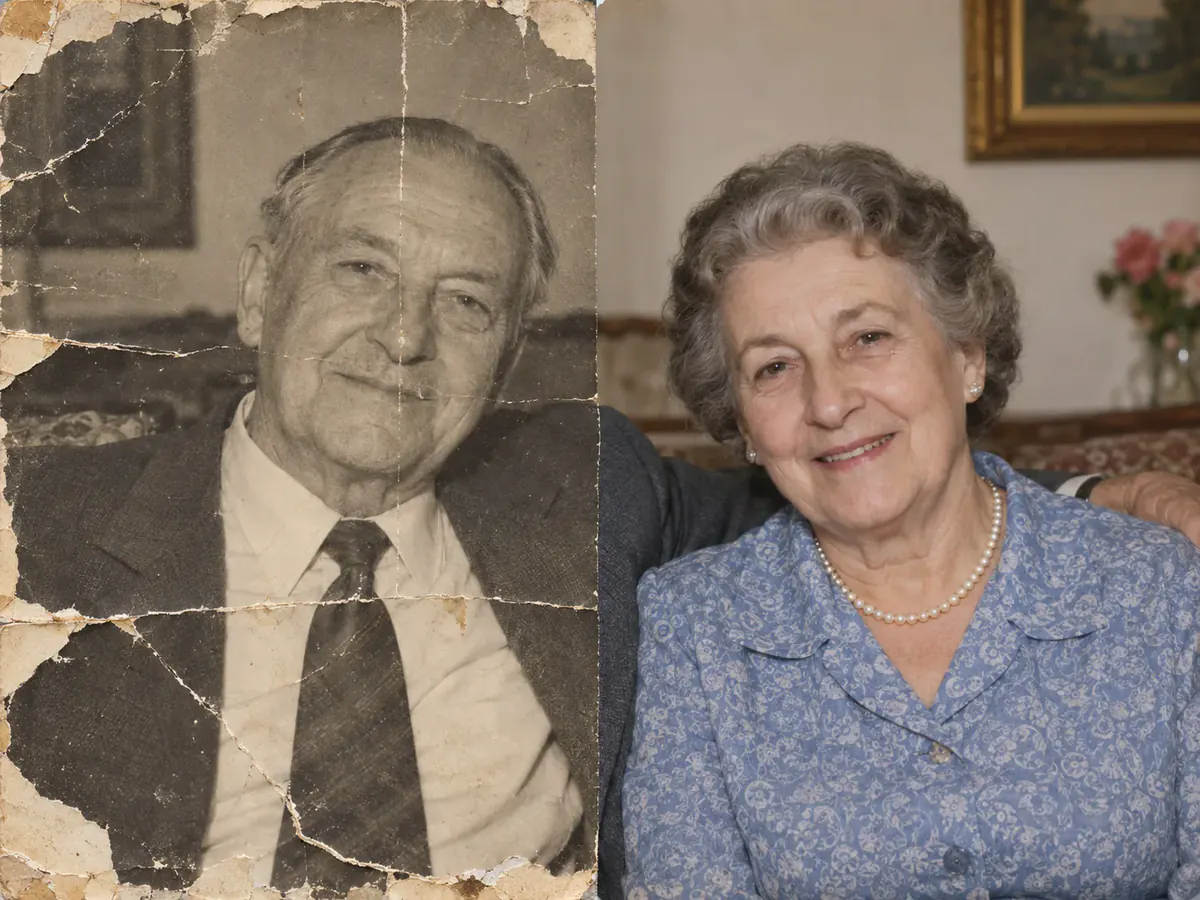
Ein beschädigtes Foto zurückholen
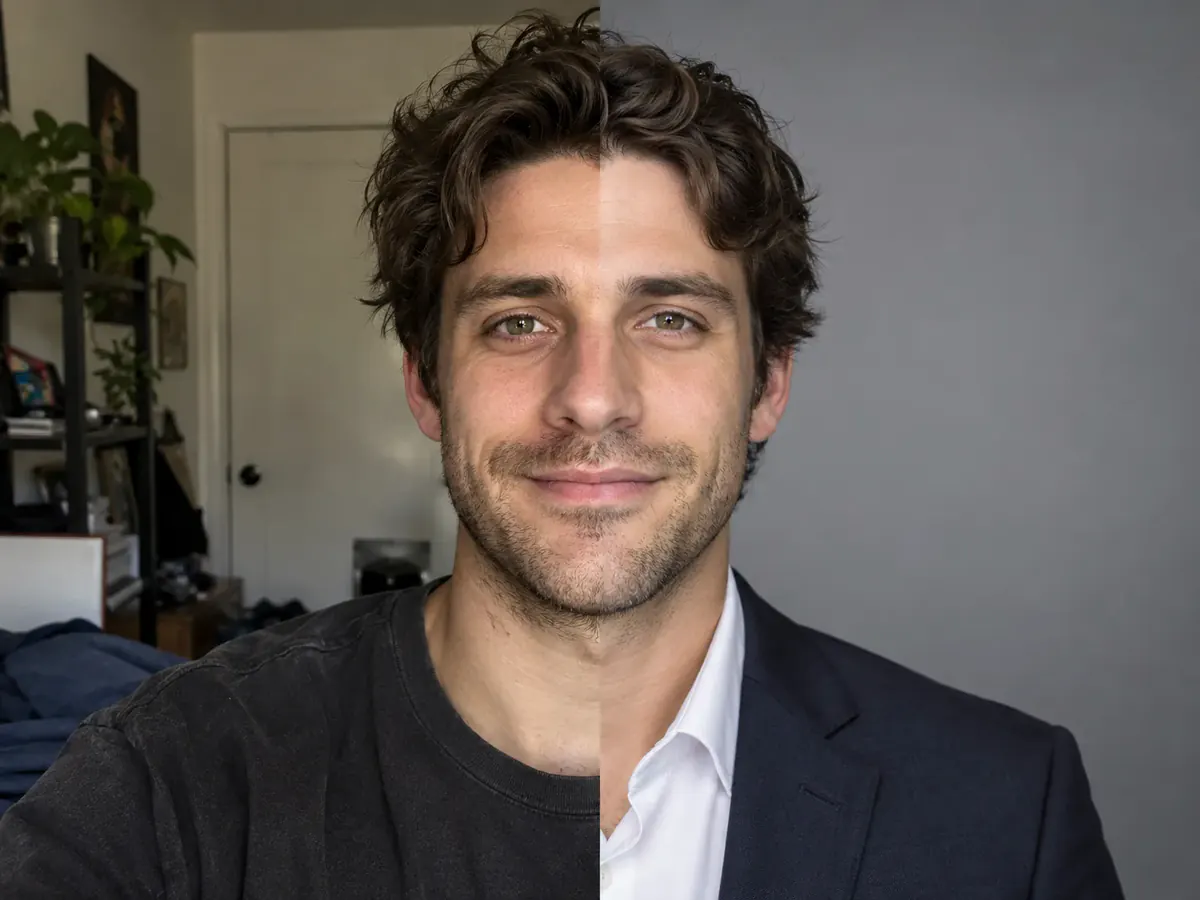
Das Bewerbungsfoto retten
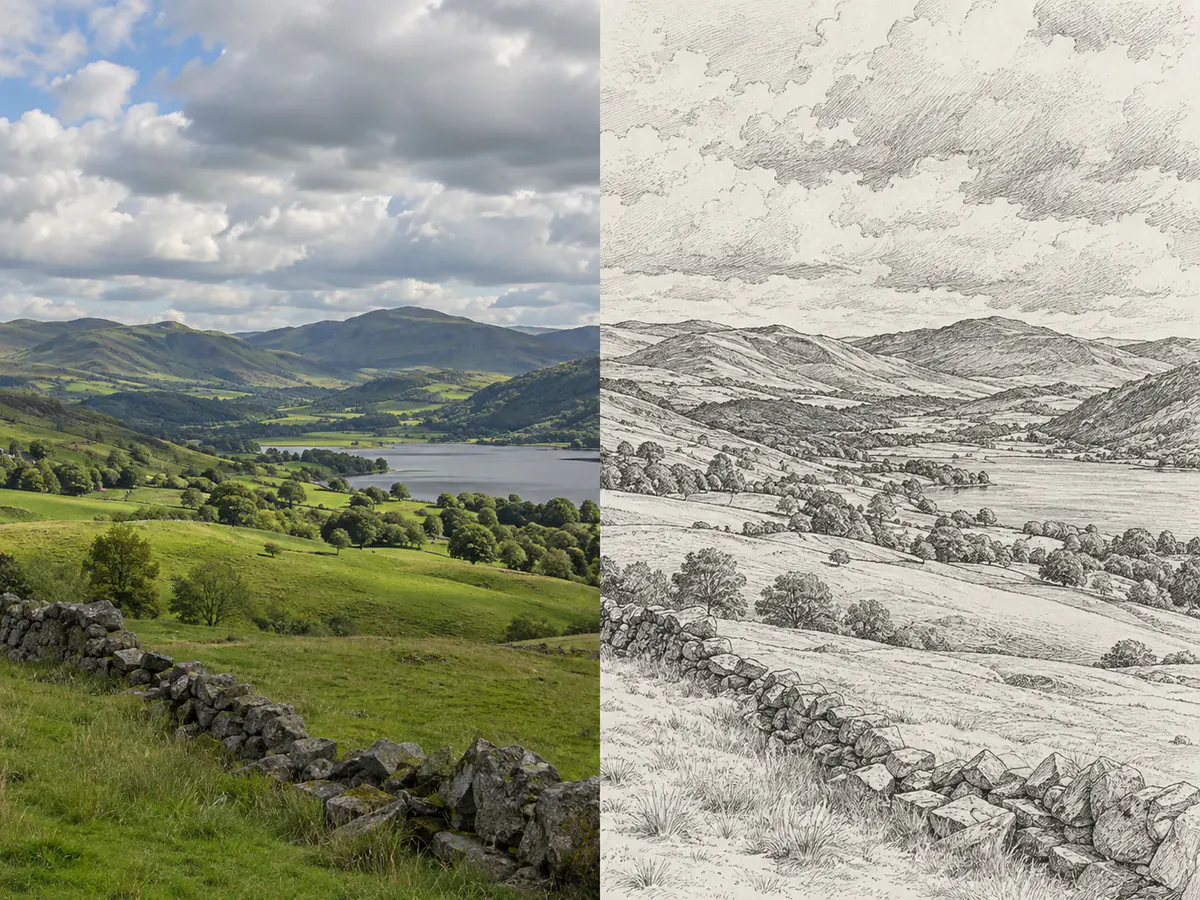
Ein Foto in ein Kunstwerk verwandeln
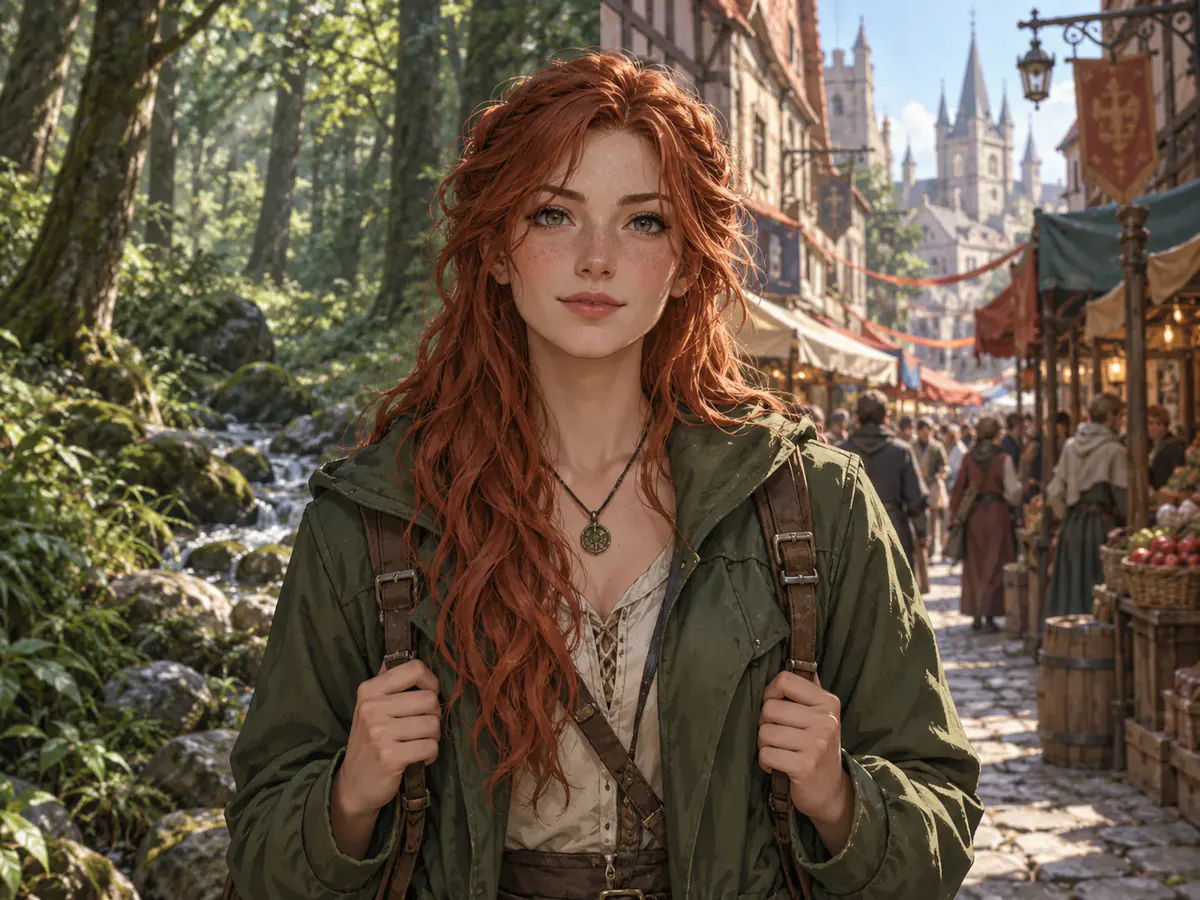
Eine Figur über mehrere Szenen halten
Warum du mit Phevo KI Bilder bearbeiten solltest
Häufige Fragen zum KI-Bilder-Bearbeiten
KI Bilder bearbeiten heißt: Du bringst ein Foto und einen geschriebenen Satz mit, das Modell rendert daraus ein neues Bild. Phevo schickt beides an dein gewähltes Modell; zurück kommt eine Aufnahme, die den Bildaufbau behält und genau das ändert, was du benannt hast.
Ein Textgenerator startet bei null, das fertige Bild ist deshalb nie wirklich deins. Beim KI-Bilder-Bearbeiten gibt deine Datei den Rahmen vor: Ausschnitt, Motiv und Anordnung stammen aus deinem Foto, und der Prompt entscheidet allein, was sich bewegt.
In einem Ebeneneditor maskierst und blendest du von Hand. Wer KI Bilder bearbeiten lässt, kommt mit einem Satz aus, ganz ohne Auswahl. Bezahlt wird das mit Genauigkeit: Ein manuelles Programm trifft exakt die Pixel, die du bestimmst – feine Retusche gehört dorthin.
Einmal pro Tag ja: ohne Konto, ohne Wasserzeichen. Wer sich registriert, bekommt 6 Willkommens-Credits, ohne Karte. Unbegrenzt gratis KI Bilder bearbeiten kannst du hier aber nicht – schon das günstigste Modell kostet 5 Credits pro Durchlauf.
Je nach Modell 5 bis 20 Credits bei 1K, bei 2K das 1,5-Fache, bei 4K das 2-Fache. Die Zahl steht auf dem Generieren-Button neben deinem Guthaben, bevor die KI Bilder bearbeiten darf.
Das entscheidet dein Satz, kein Regler: Die Endpunkte bieten keine Stärke-Einstellung an. Wenn du KI Bilder bearbeiten lässt, übersteht „Pose, Hintergrund und Licht behalten, nur die Jacke ändern“ den Durchlauf – „mach das cooler“ nicht.
Phevo ist die Voreinstellung für 5 Credits und deckt alltägliches KI-Bilder-Bearbeiten samt Hintergrundarbeit ab. Nano Banana Pro und GPT Image 2 halten Details in Gesichtern und Schriftzügen. Seedream 5.0 Pro und Flux-2 Pro passen zu großen Formaten. Grok Imagine ist am günstigsten, endet aber bei 2K.
In zwei Hälften. Zuerst das, was bleiben muss – Pose, Schatten, Aufschrift –, danach die eine Änderung. Ein vager Satz erlaubt der KI, auch das neu zu zeichnen, was bleiben sollte.
Wachsartige Haut entsteht dort, wo ein Modell ein Gesicht neu aufbaut, statt drumherum zu arbeiten. Sag ausdrücklich, was bleiben soll: Eine dunkle oder stark komprimierte Vorlage gibt kaum Halt, wenn die KI Bilder bearbeiten soll.
JPEG, PNG und WebP bis 30 MB. Du kannst hier KI Bilder bearbeiten, ohne etwas zu installieren: Der Browser verkleinert schon vor dem Upload, am iPhone wie am Laptop. Zurück kommt das Bild in deinem gewählten Seitenverhältnis, nicht im Format deiner Datei.
Nur wenn du es so einstellst. Ausgegeben wird nach Seitenverhältnis und Auflösung, die du wählst, nicht nach deiner Datei – aus einer bescheidenen Vorlage kann 2K oder 4K werden. Grok Imagine hört bei 2K auf und wird auch zu 2K abgerechnet.
Kleine Schrift, Hände, Logos und Gesichter am Bildrand müssen genau geprüft werden. Außerdem lassen sich Bearbeitungen über mehrere Blickwinkel hinweg weiterhin nicht zuverlässig aufeinander abstimmen. Jede generative Bearbeitung liefert ein Bild. Angemeldete Nutzer können nur mit einem echten Upscaling-Modell bis zu 5 Bilder im Stapel verarbeiten; Multi Fusion kombiniert Referenzen zu einem Ergebnis.
Wer hier KI Bilder bearbeiten lässt, schickt sein Foto an fal.ai – das steht am Upload-Feld, nicht im Kleingedruckten. fal.ai sagt in seinen Bedingungen nicht zu, eingereichte Inhalte vom Modelltraining auszunehmen; also behaupten wir das nicht. Lade Wichtiges zügig herunter und halte heikle Fotos von KI-Editoren fern, diesem eingeschlossen.
Der erste Durchlauf kostet dich nichts
Einmal am Tag gratis KI Bilder bearbeiten: ohne Konto, ohne Wasserzeichen, der Preis steht vorher auf dem Button. Mehr als ein Foto und einen Satz brauchst du nicht.
Jetzt kostenlos KI Bilder bearbeiten